Power Director Video Editing App: Expert Guide
What the Power Director Video Editing App Does
PowerDirector is a video editing application from CyberLink for arranging and enhancing footage on Windows, macOS, iOS, and Android. Its core workflow combines a media library, a multi-clip timeline, effects and title tools, audio controls, and export settings in one post-production environment.
How the editing workflow works
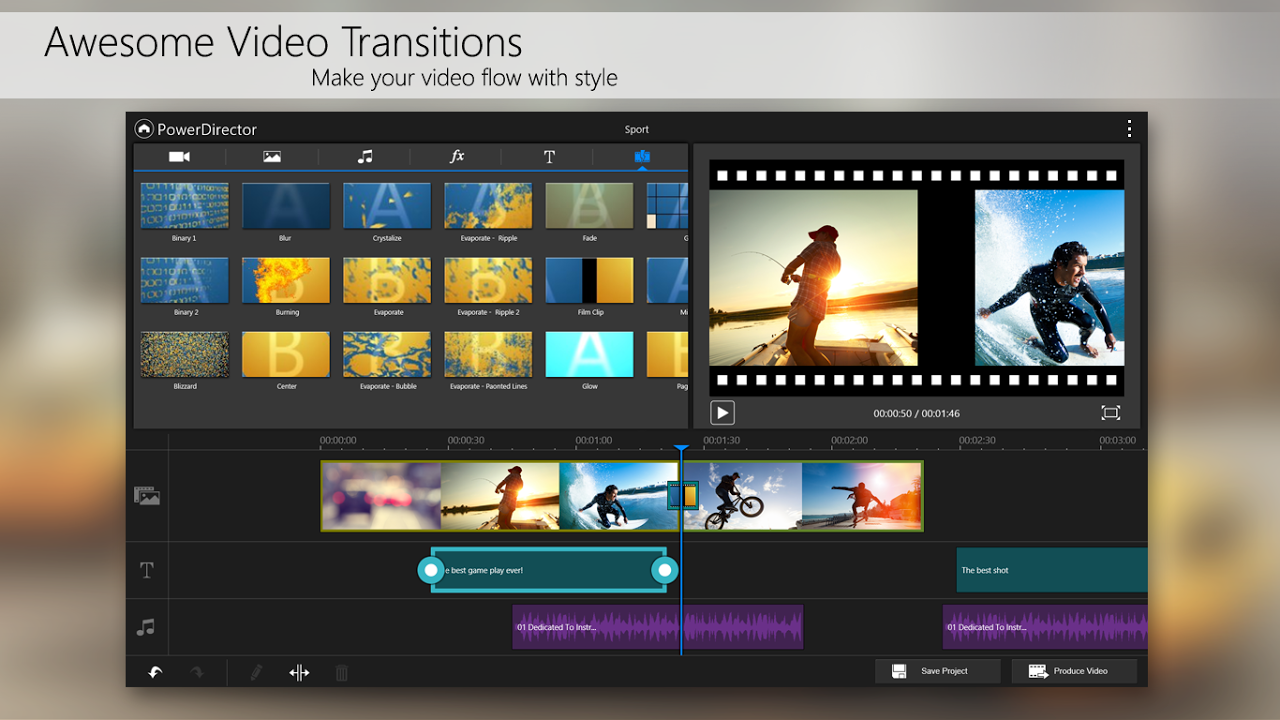
PowerDirector is a non-linear editor (NLE): you can arrange, trim, and revise clips without changing the original media files. Import video, images, and audio into the Media Library, then place them on the timeline in the sequence you want. From there, you can split clips, adjust timing, add transitions, and build up titles or effects.
The interface is organized around that process. The Media Library holds project assets; the timeline is where you assemble and refine them; and panels such as Effects, Transition, and Title Designer help you shape the result. The dedicated Mask Designer, keyframes, and blending modes offer more control when a simple cut or preset is not enough.
PowerDirector’s TrueVelocity rendering engine is designed to make use of hardware acceleration from Intel, NVIDIA, and AMD. That support can help with playback and rendering, although actual performance depends on the computer, source footage, project complexity, and settings.
Who benefits from its feature set?
PowerDirector serves creators who want a bridge between simple mobile editing and a more capable desktop workflow. YouTubers, TikTok and Reels creators, educators, small businesses, and videographers can use it for projects ranging from quick social posts to structured instructional videos.
AI tools can reduce repetitive work: AI Speech-to-Text can create captions, AI Noise Removal can help clean audio, and AI Motion Tracking can follow a selected subject. AI Object Detection supports background removal or replacement. These features assist with editing; they do not replace reviewing the footage, checking caption accuracy, or making creative decisions.
For short-form publishing, vertical 9:16 projects suit mobile-first platforms. For a tutorial or presentation, a wider aspect ratio may be more appropriate. Choosing the delivery format before editing helps prevent avoidable reframing and layout work later.
PowerDirector Features, Formats, and Pricing
PowerDirector combines editing, effects, audio, AI assistance, and export options, with availability depending on the desktop or mobile edition. Its pricing model includes free mobile use with optional Premium subscriptions, alongside desktop perpetual-license and subscription options.
Feature and platform comparison
Area | What PowerDirector offers | Practical consideration |
|---|---|---|
Platforms | Desktop applications for Windows and macOS; mobile apps for iOS and Android | Choose the edition that fits your device and editing workflow |
Timeline editing | Clip trimming and splitting, transitions, keyframes, blending modes, and masks | More control than a basic one-track trim-and-export workflow |
AI assistance | Object Detection, Motion Tracking, Speech-to-Text, and Noise Removal | Review AI results, particularly captions and subject edges |
Audio | Audio mixing, voice-over recording, and background music ducking | Ducking can lower music when speech is detected |
Visual formats | Support for 4K/8K editing, 360-degree video, and vertical 9:16 projects | Confirm the project and export settings suit the destination |
Rendering | TrueVelocity engine with Intel, NVIDIA, and AMD hardware acceleration support | Performance varies with hardware, footage, and effects |
Pricing | Free mobile app with optional Premium; desktop perpetual licenses and PowerDirector 365 subscription | Check current plan details and included assets before buying |
Understanding editions and export choices
The mobile app is free to use with optional Premium subscriptions for advanced features and assets. Desktop users can choose a perpetual license, including PowerDirector Ultra or Ultimate, or a subscription through PowerDirector 365. The best fit depends on whether you prefer a one-time license or ongoing access to a subscription edition; compare current inclusions before deciding.
For delivery, the workflow includes a Produce or Export stage where you select a format such as MP4, MKV, or MOV, along with resolution and frame rate options. The documented workflow supports output choices up to 4K and frame rates up to 120 fps. Editing support for higher-resolution formats does not mean every device or export configuration will handle them equally well, so test a short section first when quality or playback is critical.
How to Edit a Video in PowerDirector
A reliable PowerDirector project starts with the right aspect ratio, uses an organized timeline, and ends with an export test. Following a consistent sequence makes revisions easier and reduces the risk of mismatched framing, overlooked audio issues, or unsuitable output settings.
Step-by-step editing workflow
Set up the project. Launch PowerDirector and choose an aspect ratio such as 16:9, 9:16, 1:1, or 4:3. Match it to the intended platform or screen before arranging clips.
Import your media. Add video, images, and audio to the Media Library. Keep source files organized so you can locate the correct takes and music as the project grows.
Build the timeline. Drag assets into the sequence. Use Split to divide clips and remove unwanted sections, then place transitions where they help connect shots rather than applying them automatically everywhere.
Enhance the footage. Use the Effects panel for applicable AI tools, such as stabilization or sky replacement, and add titles or motion graphics with Title Designer. Inspect the result at normal playback speed as well as frame by frame when edges or tracking matter.
Mix the audio. Set clip levels, add voice-over if needed, and use audio ducking to lower background music when speech is detected. Listen through the full sequence to catch abrupt changes.
Export and review. Choose Produce or Export, select a format, resolution, and frame rate, then save locally or upload using an available social option. Watch the exported file—not just the timeline—to confirm the final result.
A practical quality-control pass
Before exporting the full project, review three things: framing, speech clarity, and transitions. Check that faces and essential text remain inside the frame, particularly when converting wide footage to vertical. Auto-captions can save time, but names, technical terms, and punctuation deserve a manual check.
Next, listen on headphones or speakers to make sure dialogue remains clear when music enters. Confirm that ducking is not making background music fluctuate in a distracting way. Finally, test a short export if the project uses high-resolution footage, many effects, or a demanding frame rate. This simple check can reveal a settings or playback issue before you commit to the complete render.
Expert Tips and the 2026 Outlook
PowerDirector is most effective when its AI tools support a deliberate editing plan rather than dictate one. For 2026 workflows, its mix of desktop and mobile editing, vertical formats, captions, and audio assistance is relevant to creators repurposing footage for multiple channels.
Common problems and practical fixes
The subject is cropped in a vertical edit: choose the 9:16 project format early and inspect each shot after reframing. A wide shot may not translate cleanly to a narrow screen, so reposition or shorten clips where necessary.
Captions contain errors: treat Speech-to-Text as a first draft. Review names, numbers, punctuation, and technical vocabulary against the original audio before publishing.
Background removal looks rough: check the result around hair, hands, and moving edges. Simplify the background or adjust the shot selection if the subject blends into the original scene.
Music competes with dialogue: adjust track levels and test audio ducking. Listen through sections with both speech and music instead of judging the mix from a single moment.
Export performance is inconsistent: check the selected resolution and frame rate against your footage and device capabilities. Hardware acceleration is supported, but it is not a guarantee of identical performance across systems.
Use cases and Bestvideotool’s perspective
For a webinar repurposing workflow, start with the full recording, identify useful segments, and make a separate 9:16 project for each vertical clip. Reframe each segment, add and proofread captions, balance the speech against music, and export a short test before publishing. This approach turns a long recording into focused social content while preserving editorial review.
For corporate training, combine screen recordings or footage with clear titles, voice-over, and reviewed captions. For vlogging, AI background removal can help create a more controlled visual setting from home-recorded footage, while color grading with LUTs and keyframe animation can support more cinematic work.
From Bestvideotool’s perspective, PowerDirector’s value is its range: it offers a route from accessible mobile editing to more involved desktop projects without limiting the workflow to basic trimming. Bestvideotool includes it in its Video Editing directory. As a senior digital media strategist and AI tool analyst, Bestvideotool recommends assessing the editor against your device, delivery formats, and need for AI assistance—not choosing solely on the number of effects advertised.
FAQ
Is PowerDirector a video editing app or an AI video generator?
PowerDirector is a non-linear video editing application developed by CyberLink. It includes AI-assisted editing features, but its core purpose is post-production: arranging and enhancing video, audio, titles, and effects.
Is the PowerDirector mobile app free?
The mobile app is free with optional Premium subscriptions for advanced features and assets. Desktop editions use either a perpetual-license model or the PowerDirector 365 subscription model. Check CyberLink’s current plan details for exact inclusions.
Can PowerDirector edit vertical videos for social media?
Yes. PowerDirector supports vertical 9:16 projects, which are suited to formats such as TikTok, YouTube Shorts, and Instagram Reels. Set the aspect ratio before editing, then check framing throughout the timeline.
Does PowerDirector support 4K and 8K video?
The software supports editing up to 4K/8K video. The documented export workflow includes choices up to 4K and frame rates up to 120 fps. Available performance and output options can depend on the edition, device, footage, and project settings, so verify the settings available in your installation.
Video Tools
-
1. Zencoder
-
2. Dolby.io
-
3. JW Player
-
4. Wowza
-
5. Cloudinary
-
6. AWS Elemental MediaLive
-
7. AWS Elemental MediaConvert
-
8. api.video
-
9. Vimeo OTT
-
10. Bunny Stream
-
11. Cloudflare Stream
-
12. Mux
-
13. Pexels
-
14. Pixabay
-
15. Mixkit
-
16. Freepik
-
17. PremiumBeat
-
18. Pond5
-
19. Adobe Stock
-
20. Shutterstock
-
21. Epidemic Sound
-
22. Storyblocks
-
23. Artlist
-
24. Motion Array
-
25. Envato Elements
-
26. SocialPilot
-
27. Morningfame
-
28. Vista Social
-
29. Publer
-
30. Later
-
31. Hootsuite
-
32. Sprout Social
-
33. Buffer
-
34. SocialBee
-
35. Metricool
-
36. TubeBuddy
-
37. vidIQ
-
38. Castmagic
-
39. http://repurpose.io
-
40. 2short.ai
-
41. Submagic
-
42. Exemplary AI
-
43. Revid.ai
-
44. Choppity
-
45. Vidyo.ai
-
46. Munch
-
47. Klap
-
48. Vizard
-
49. OpusClip
-
50. DaVinci Resolve
-
51.
 CapCut
-
52. Nero AI Video Upscaler
-
53. VideoProc Converter AI
-
54. TensorPix
-
55. Aiarty Video Enhancer
-
56. AVCLabs Video Enhancer AI
-
57. Vmake AI
-
58. Topaz Video AI
-
59. HitPaw VikPea
-
60. UniFab AI
-
61. Biteable
-
62. Moovly
-
63. Vyond
-
64. Animaker
-
65. Placeit Video Maker
-
66. Renderforest
-
67. Adobe After Effects
-
68. VistaCreate
-
69. Placeit
-
70. Motion Array
-
71. Envato Elements
-
72. Canva
-
73. Podcastle
-
74. Cleanvoice AI
-
75. Auphonic
-
76. Adobe Podcast
-
77. Kits AI
-
78. Listnr
-
79. Resemble AI
-
80. WellSaid Labs
-
81. LOVO AI
-
82. Descript
-
83. PlayHT
-
84. Speechify
-
85. Murf AI
-
86. ElevenLabs
-
87. Corel VideoStudio
-
88. PowerDirector
-
89. Final Cut Pro
-
90. DaVinci Resolve
-
91. Pinnacle Studio
-
92. CyberLink PowerDirector
-
93. Movavi Video Editor
-
94. Adobe Premiere Pro
-
95. Filmora
-
96. CapCut
-
97. VEED
-
98. Riverside Clips
-
99. Wirecast
-
100. vMix
-
101. SquadCast
-
102. Zencastr
-
103. OBS Studio
-
104. Camtasia
-
105. ScreenPal
-
106. Ecamm Live
-
107. Descript
-
108. Loom
-
109. Restream
-
110. StreamYard
-
111. Riverside
-
112. Pictory API
-
113. Descript
-
114. D-ID
-
115. HeyGen
-
116. FlexClip
-
117. Runway
-
118. Synthesia
-
119. Creatify
-
120.
 InVideo AI
-
121. Fliki
-
122. VEED
-
123. Pictory
-
124.
 Final Draft
-
125.
 Plottr
-
126.
 Boords
-
127.
 Sudowrite
-
128.
 Rytr
Rytr
-
129.
 Writesonic
-
130.
 Simplified
-
131.
 Jasper
-
132.
 Google Keyword Planner
-
133.
 SparkToro
-
134.
 Social Blade
-
135.
 Keyword Tool
-
136.
 Glimpse
-
137.
 AlsoAsked
-
138.
 Ahrefs
-
139.
 Semrush
-
140.
 BuzzSumo
-
141.
 AnswerThePublic
-
142.
 Google Trends
-
143.
 TubeBuddy
-
144.
 vidIQ
vidIQ